About this Agentic Data Analyst
Analyse structured data in natural language — no SQL required.
This is an agentic data analyst — a tool that lets you explore and analyse structured datasets through a natural language conversation, without writing a single line of SQL. It is being built in four phases, as outlined below. The current version runs on Claude Sonnet, Anthropic's state-of-the-art language model. Support for local open-source models is planned for a later phase.
Upload one or more CSV files and ask business questions in plain English. The agent translates your question into SQL, executes it against your dataset, and returns a clear, grounded answer — all results are backed by actual query execution, not model inference.
Across multiple analyses, the tool builds up a memory of past findings. Built on a LangGraph agent with a two-tier architecture, past analyses are stored in a Chroma vector database and retrieved via RAG (Retrieval-Augmented Generation), so relevant context is injected into each new question without passing the full conversation history on every API call.
The analysis phase is instrumented with LangSmith, providing full observability into every agent run — including the SQL queries generated, tool calls made, and token usage per step.
Phase 1 — Live ✓
- Claude API Integration
- Schema Confirmation & NL→SQL Analysis Loop
- RAG Memory: vector store for cross-analysis context
Phase 2 — Live ✓
- AWS Cloud Deployment
- Docker Containerisation
- CI/CD Pipeline
Phase 3 — In Progress
- Monitoring & Observability: LangSmith tracing ✓
- Kaggle Integration: load datasets directly by URL
- User Accounts & persistent session storage
Phase 4 — Planned
- Local Model Support: run without an API key via Ollama
- Data Transformation: natural language to pandas operations
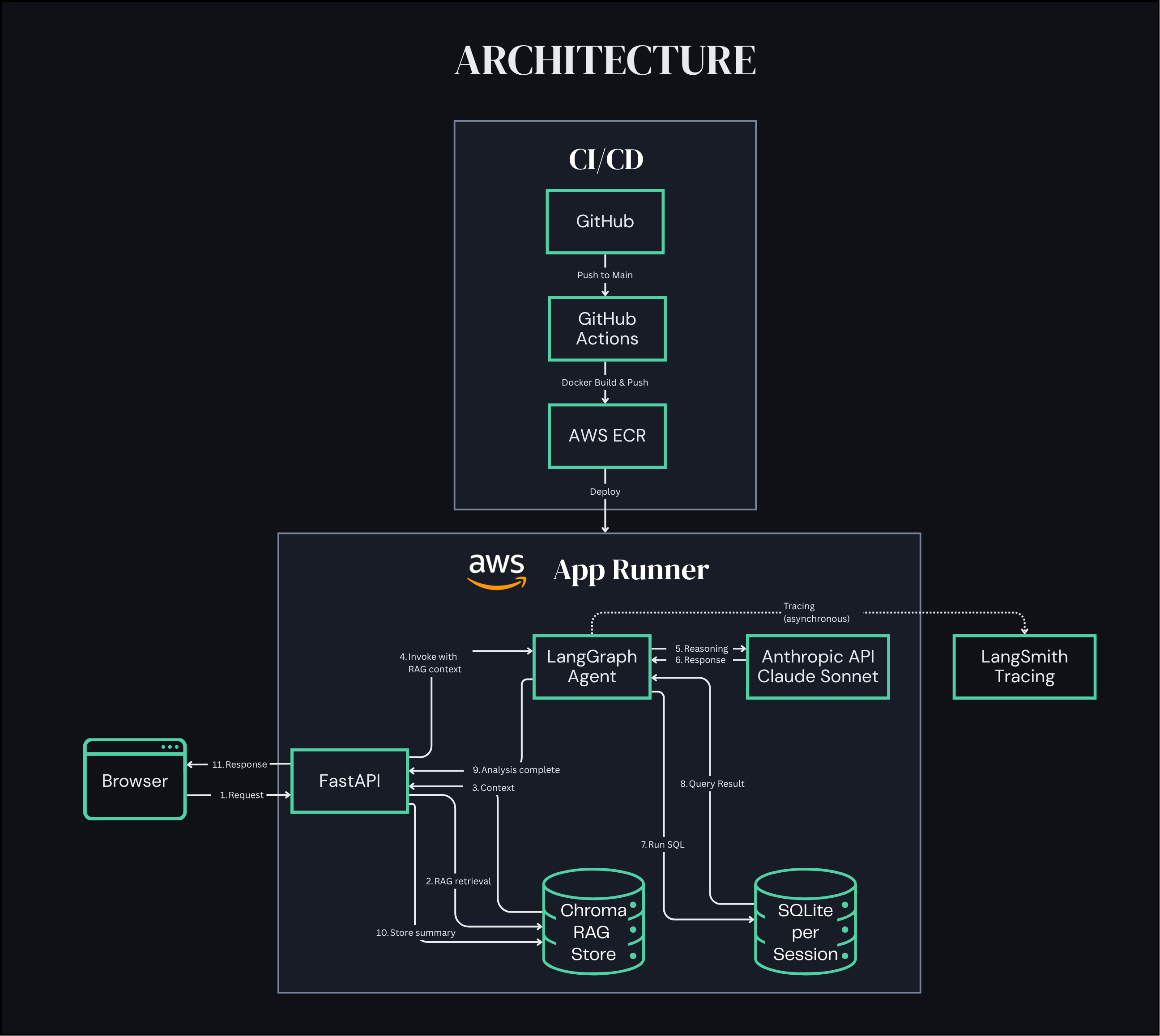
Simplified — actual flow includes conditional branches and conversational loops. See README for details.
Important Notes
API key required. This tool uses the Anthropic Claude API. You need to bring your own key from console.anthropic.com. Your key is transmitted to the server only to make API calls and is wiped from memory at the end of your session — it is never logged or stored to disk.
Prefer to run locally? Clone the repo at github.com/Wilsbert12/agentic-data-analyst and follow the setup instructions in the README.
How to Use
Six steps from dataset to insight.
Get an Anthropic API key
Sign up at console.anthropic.com and create an API key. This is separate from a Claude.ai subscription. Usage is billed per token — a typical analysis session costs a few cents.
Upload your dataset
Upload one or more CSV files. Each file becomes a table in a SQLite database. Multi-table datasets with foreign keys are fully supported — the agent can write JOIN queries across tables.
Upload context files (optional)
Optionally upload a data card, data dictionary, or schema diagram (PNG/JPG). These are sent to Claude during setup to improve schema understanding — useful for complex datasets with non-obvious column names or relationships.
Confirm the schema
Claude reviews the schema, sample rows, and profiling statistics, then asks clarifying questions about ambiguities — duplicate keys, multiple rows per entity, missing translations. Answer concretely: specific handling rules produce better SQL than vague answers.
Ask business questions
Ask questions in plain English. The agent clarifies before assuming — if your question is ambiguous, it will ask for thresholds or definitions before running any query. All answers are grounded in actual query results.
Confirm and continue
When you're satisfied with an answer, confirm it. The analysis is summarised and stored in memory — future questions can reference past findings automatically via similarity search.
Demo
See the agent in action.
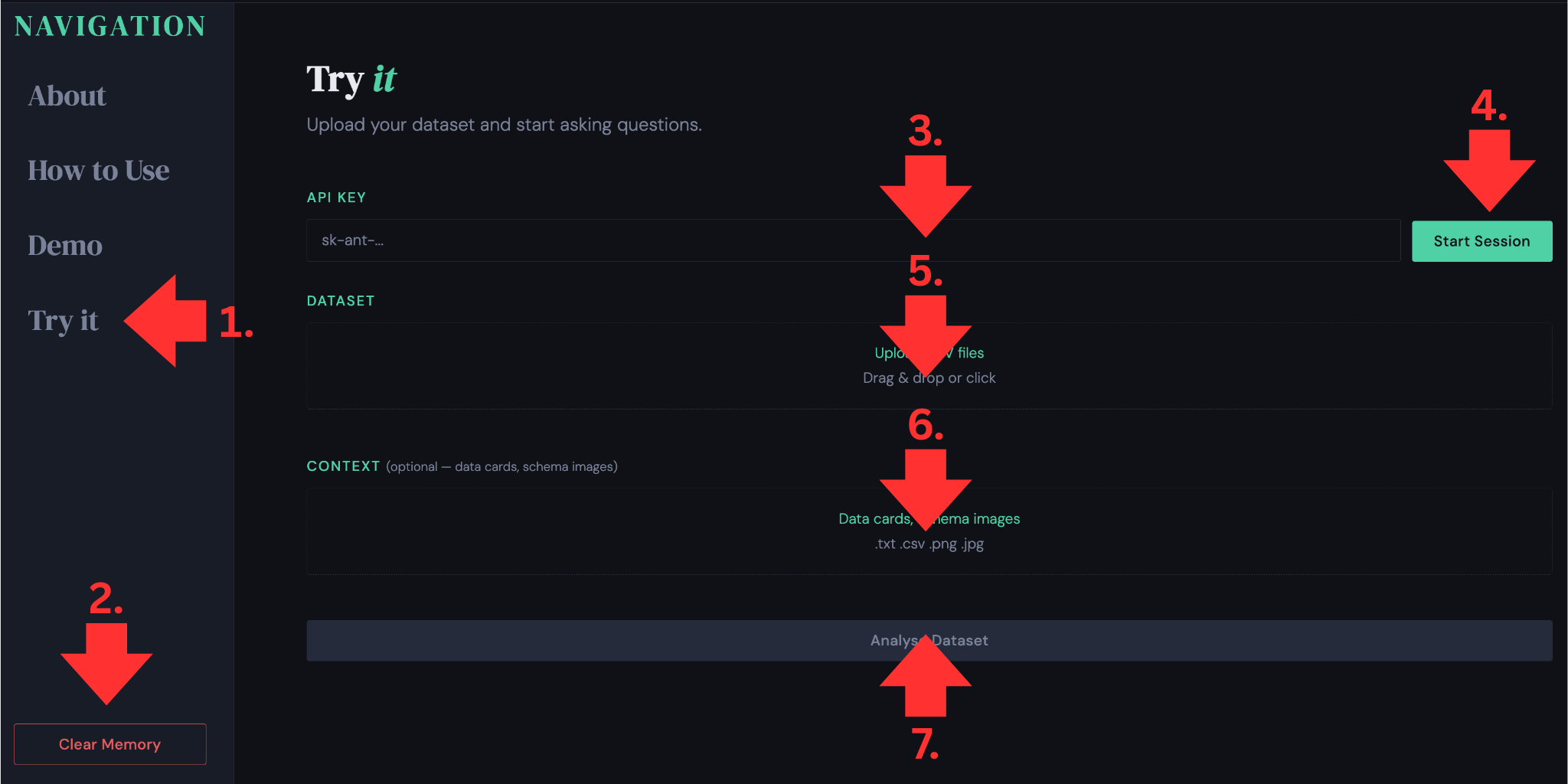
1. Setup
- Navigate to the Try it section
- Clear memory from earlier runs (optional)
- Enter your Claude API key
- Press Start Session
- Upload your dataset (CSV files)
- Upload additional context files — data cards, schema images (optional)
- Press Analyse Dataset
2. Full Walkthrough
Click on the video to see a complete interaction with the agentic data analyst.
- Setup — the API key and files are uploaded as described in step 1
- Schema confirmation — the agent analyses the uploaded dataset and summarises tables, column types, and key relationships
- Clarifying questions — ambiguities are flagged and resolved before any analysis begins
- Schema confirmed — confirmed rules are saved and inform every subsequent query
- Business question — a natural language question is submitted; the agent asks a clarifying question before moving to the analysis
- Result — the agent runs SQL against the database and returns a grounded answer
- Refine or move on — the user is not satisfied with the first result and asks a follow-up question to refine it; after the second analysis, the user confirms the result and moves to the next question
- Memory — confirmed analyses are summarised and stored; past context is retrieved automatically for future questions
Try it
Upload your dataset and start asking questions.
Upload CSV files
Drag & drop or click
Data cards, schema images
.txt .csv .png .jpg